

FSG G1000 PFD
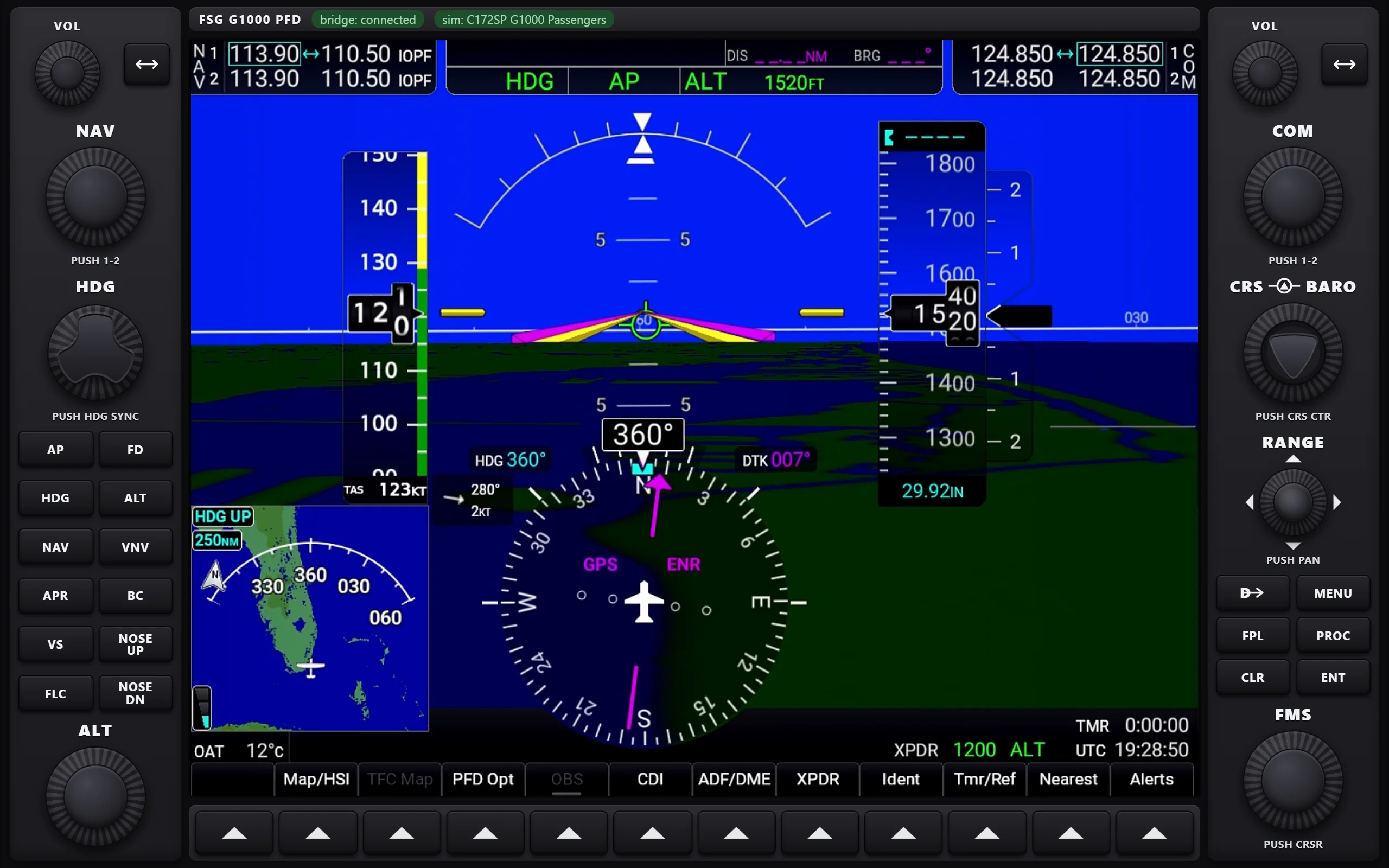
Attitude, airspeed, altitude and the autopilot under your fingers: the full PFD bezel with softkeys, HDG/ALT/CRS/BARO knobs, NAV/COM tuning and the complete AFCS key block.
For Microsoft Flight Simulator 2024 & 2020
As if you'd pulled the G1000 straight out of the simulator and set it on your tablet: no lag, every knob turns, every softkey clicks. Tune the radios, twist the heading bug, fly the approach — and keep your monitor for the view outside.
FSG G1000 PFD
FSG G1000 MFD
How it works
One small install on the PC, an app on the tablet — the boring parts happen by themselves.
A small companion program on your flight-sim PC connects the apps to the simulator. The setup guide walks you through it; after that you can forget it exists.
Open the app on the tablet: it scans your network and lists your PC by name. Tap once to connect — the choice is remembered; from then on it connects on its own.
Every press and twist goes straight back into the sim. The first time you fly an aircraft, point at your PFD with a quick right Alt + click — the app guides you through it.
Features
Every detail below is measured against the real thing in the simulator.
Modeled on the simulator's own G1000: knurled knobs, softkeys with their little triangles, the full AFCS key block, key sounds and haptics. Touch targets are larger than the artwork, so fingers hit what eyes aim at.
Turn with a circular gesture — detents you can feel, inner and outer rings, acceleration on the heading and course knobs when you spin fast. Tap for a single step, press the centre to push. Hold the COM swap key to punch in 121.5.
All twelve softkeys, FMS knob and cursor, Direct-To, flight plan and procedures, NAV/COM tuning with volumes — and on the MFD: map range, joystick panning and every page group.
Freshness beats smoothness on a flight instrument — and when your Wi-Fi has a bad day, the picture stays current rather than falling behind.
Everything on the PC side runs itself: the G1000 is set up for you, and if something closes, it recovers on its own. If anything needs you, the app says so.
No FSUIPC, no plugins to hunt down, no browser tabs. An app on the tablet and a one-time setup on the PC — nothing more.
Aircraft
FSG G1000 works with every aircraft in Microsoft Flight Simulator 2024 that carries the G1000 — from the Cessna 172 through the Diamonds and the Bonanza to the Cirrus — and with the G1000 NXi fleet in Microsoft Flight Simulator 2020. No per-aircraft profiles to download.
The apps
Run the PFD on one device, the MFD on another — both perfectly smooth, from one simulator. Buy only what your panel needs; both apps run on Android and on iPad.
Attitude, airspeed, altitude and the autopilot under your fingers: the full PFD bezel with softkeys, HDG/ALT/CRS/BARO knobs, NAV/COM tuning and the complete AFCS key block.
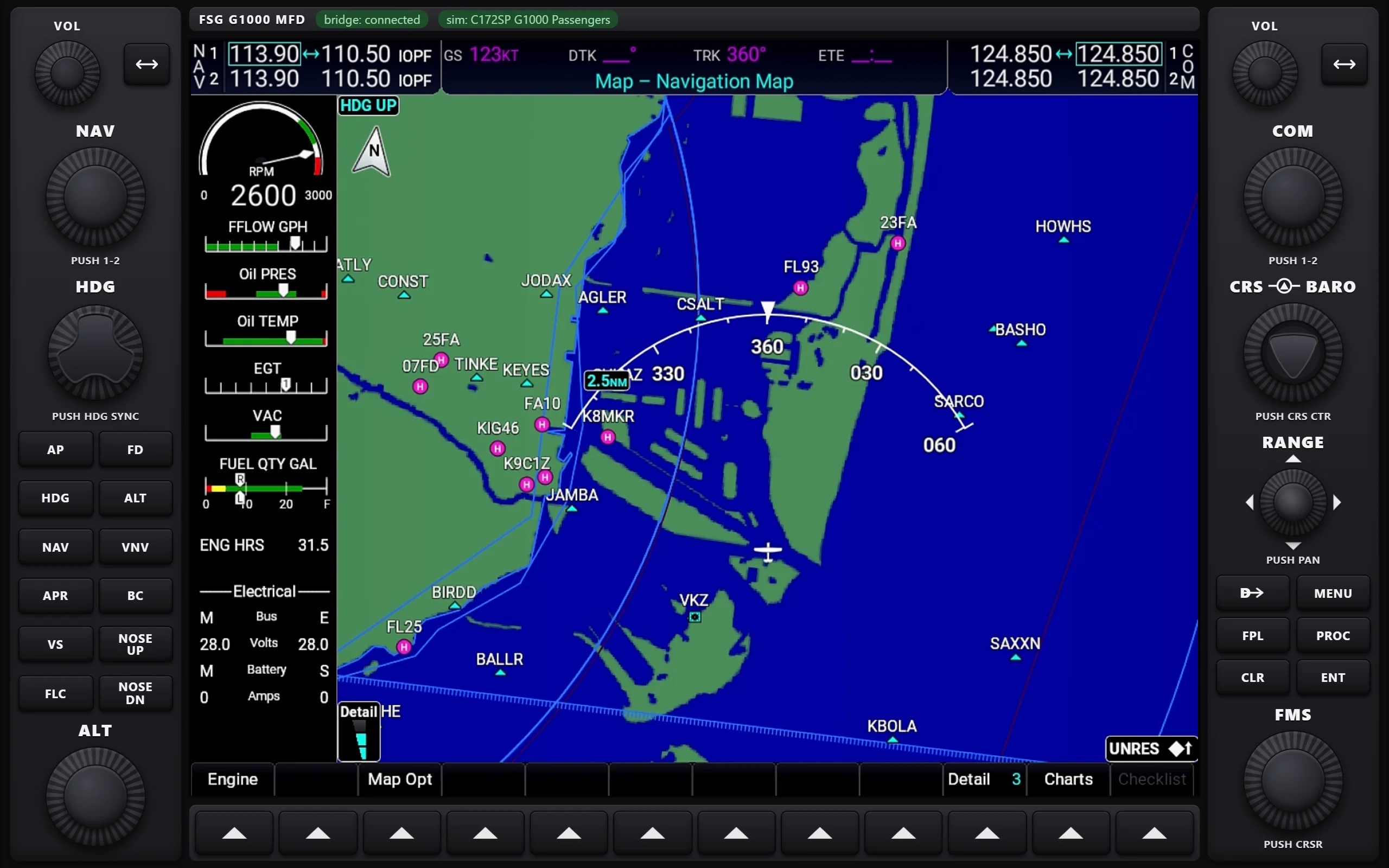
The moving map and engine page, with flight plan, procedures and charts on the softkeys. Zoom with the RANGE knob, pan with the joystick, walk page groups with the FMS knob — just like leaning over to the right seat.
FAQ
One thing: FSG SimBridge on your PC — the program the tablet talks to the simulator through. Installing it takes a couple of minutes, and the setup guide walks you through it.
MSFS 2020 — yes. FSG G1000 works with Microsoft Flight Simulator 2024 and 2020 alike, from Steam or the Microsoft Store, and with both simulators installed on one PC. The bridge recognises which one is running by itself — nothing to configure.
Other simulators (X-Plane, P3D) — no.
iPad — yes. The same two apps are on the App Store, they work exactly as described on this page, and one bridge on your PC serves an iPad and an Android tablet side by side. You need iPadOS 15 or later.
iPhone — no. The G1000 bezel needs a tablet-sized screen for the knobs and softkeys to stay usable, so the App Store version is iPad-only.
Every aircraft in Microsoft Flight Simulator 2024 that flies the G1000, and the G1000 NXi fleet in MSFS 2020. The app works only with the G1000: load an aircraft with different avionics and it says “This aircraft has no G1000” instead of guessing.
Yes. Both displays stay perfectly smooth, and commands from both work at the same time.
No — the tablet and the PC have to be on the same local network. That is what makes it feel instant.
Almost always Wi-Fi contention: the simulator downloads scenery over the same radio. The fix list, in order of effectiveness, is in the network section of the setup guide — the first item is plugging the PC into Ethernet.